
If you’re here, you probably just want one thing: Directv turn off closed captioning — fast.
Maybe captions suddenly appeared during a movie night.
Maybe someone pressed a button on the remote.
Maybe the settings changed after an update.
Whatever happened, you don’t need a complicated technical explanation. You need clear, simple steps that actually work.
This guide walks you through:
- Turning off closed captioning on DIRECTV satellite receivers
- Disabling captions on DIRECTV Stream
- Fixing captions that won’t disappear
- Troubleshooting common remote and menu issues
- Understanding why captions keep turning back on
Everything is written in plain language so you can fix it in minutes — not hours.
What Is Closed Captioning on DIRECTV?
Closed captioning displays on-screen text for dialogue and sound effects. It’s helpful for:
- Watching TV in noisy environments
- Viewers with hearing impairments
- Late-night viewing without high volume
- Understanding accents or unclear audio
But if you don’t need it, it can feel distracting — especially if it appears unexpectedly.
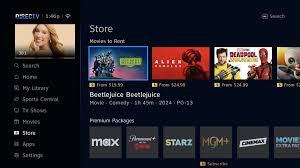
How to Directv Turn Off Closed Captioning on a Satellite Receiver 📺
4
Follow these steps for most DIRECTV satellite receivers:
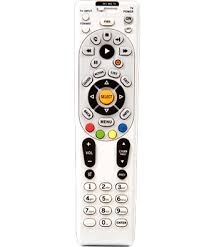
Method 1: Using the Remote
- Press MENU on your DIRECTV remote.
- Go to Settings & Help.
- Select Settings.
- Choose Display.
- Select Closed Captioning.
- Turn it Off.
That’s it.
Quick Shortcut Method
Some remotes allow:
- Press INFO
- Scroll to CC (Closed Captioning)
- Toggle to Off
If available, this is the fastest option.
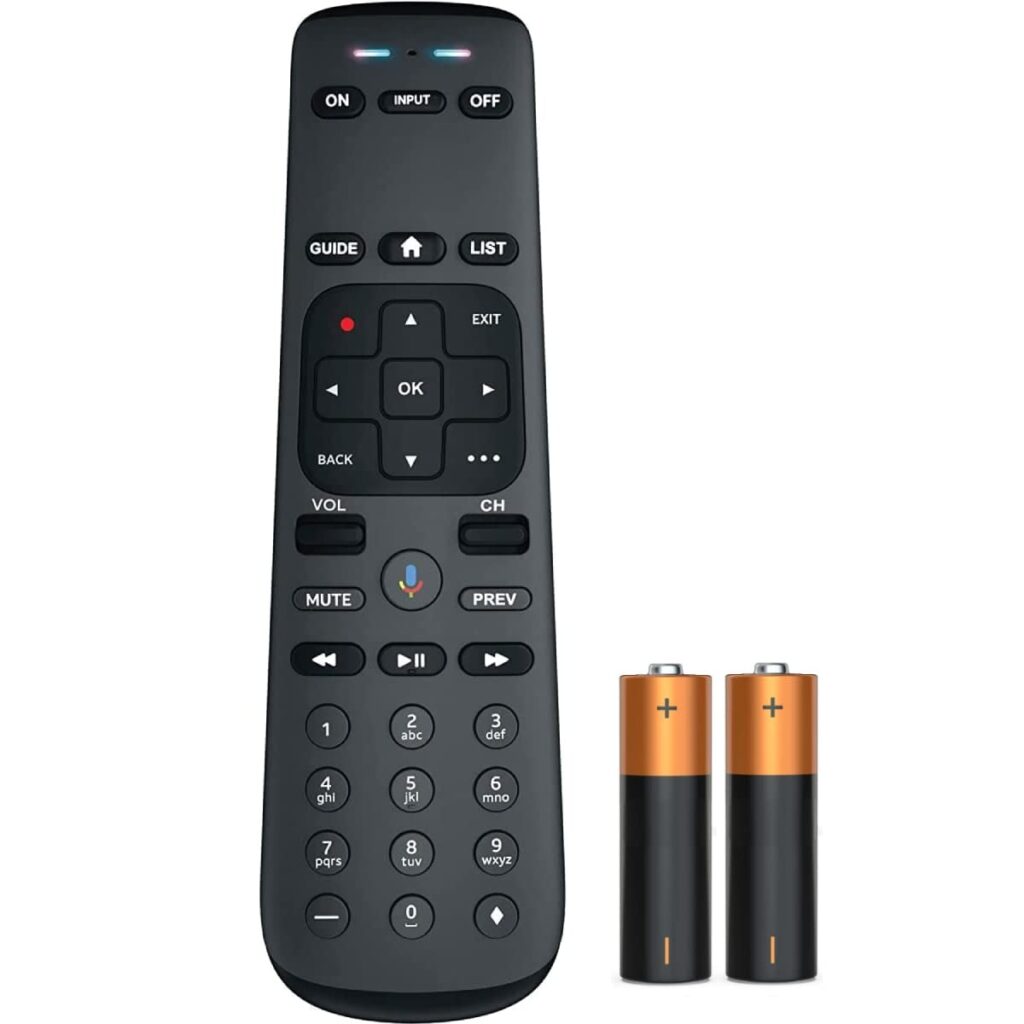
How to Directv Turn Off Closed Captioning on DIRECTV Stream 🔥
4
If you’re using DIRECTV Stream (internet-based service), steps differ slightly:
On DIRECTV Stream Device
- Press Home on your remote.
- Navigate to Settings.
- Select System.
- Choose Accessibility.
- Turn Closed Captions Off.
While Watching a Show
- Press the Down Arrow during playback.
- Select the CC icon.
- Toggle captions Off.
Directv Turn Off Closed Captioning on Smart TVs
Sometimes captions are controlled by your TV settings, not DIRECTV.
If captions won’t turn off after adjusting DIRECTV settings:
- Open your TV’s Settings menu.
- Go to Accessibility.
- Find Closed Captioning.
- Set it to Off.
Common TVs where this applies:
- Samsung Smart TVs
- LG TVs
- Roku TVs
- Vizio TVs
If captions persist, your TV may be overriding DIRECTV settings.
Why Closed Captioning Keeps Turning Back On
This is one of the most frustrating issues.
Here’s why it happens:
1️⃣ Accessibility Settings Sync
Some TVs automatically re-enable captions if accessibility features are active.
2️⃣ Streaming App Settings
If using DIRECTV Stream, captions may be controlled inside the app.
3️⃣ Receiver Software Updates
Occasionally, system updates reset caption preferences.
4️⃣ Remote Button Accidentally Pressed
Some remotes have hidden shortcuts that enable captions instantly.
Brand-New Caption Ideas (Bullet Points)
- Instant fix: DirecTV turn off closed captioning in 3 taps – 2026 style
- Bye-bye captions! DirecTV turn off closed captioning made ridiculously easy
- Crystal-clear screen: DirecTV turn off closed captioning before your next show
- 2026 remote hack – DirecTV turn off closed captioning without the menu maze
- No more text clutter: DirecTV turn off closed captioning the smart way
- One remote, zero captions – DirecTV turn off closed captioning done right
- Fastest path to clean TV: DirecTV turn off closed captioning in under a minute
- Pro tip 2026: DirecTV turn off closed captioning and never look back
- Seamless viewing unlocked – DirecTV turn off closed captioning guide
- Your screen, your rules: DirecTV turn off closed captioning starting now
Directv Turn Off Closed Captioning When It Won’t Disable 🚫
If captions stay on no matter what:
Step 1: Restart Receiver
Unplug your receiver for 30 seconds.
Plug it back in and restart.
Step 2: Check TV Settings
Disable captions on the TV itself.
Step 3: Reset Caption Settings
Go back into:
Settings → Display → Closed Captioning → Turn Off → Confirm.
Step 4: Factory Reset (Last Resort)
Only do this if other steps fail.
DIRECTV Remote Not Responding? Try This 🔧
Sometimes the issue isn’t captions — it’s the remote.
Fixes:
- Replace batteries
- Reprogram the remote
- Check IR sensor obstruction
- Use DIRECTV app as temporary remote
- Reset remote pairing
If the remote doesn’t change settings, captions may appear stuck.
How to Adjust Caption Appearance Instead of Turning Off
If you don’t want to disable captions completely, you can customize them:
- Change font size
- Adjust background opacity
- Modify text color
- Remove background box
- Reduce text shadow
This can make captions less distracting while keeping accessibility active.
Voice Command: Directv Turn Off Closed Captioning 🎤
If your remote supports voice control:
Try saying:
- “Turn off closed captions.”
- “Disable captions.”
- “Closed captioning off.”
Voice commands work on many newer DIRECTV remotes.
DIRECTV Genie Receiver Caption Settings Guide
For Genie users:
- Press MENU
- Go to Settings
- Select Display
- Choose Closed Captioning
- Toggle Off
Genie systems follow similar steps but menu layout may vary slightly.
DIRECTV Stream App on Mobile Devices
If watching on:
- iPhone
- Android
- Tablet
Do this:
- Tap screen while video plays
- Select CC icon
- Turn Off captions
Mobile app captions are controlled independently from TV settings.
When to Contact DIRECTV Support ☎️
Contact support if:
- Captions won’t disable after reset
- Receiver menu is missing options
- Software glitch suspected
- Remote won’t pair
Most issues are solvable without support, but persistent problems may require assistance.
Frequently Asked Questions
How do I quickly turn off captions on DIRECTV?
Press MENU → Settings → Display → Closed Captioning → Off.
Why are captions on only one channel?
Some channels broadcast captions by default.
Can I disable captions permanently?
Yes, but system updates may reset them occasionally.
Are subtitles the same as closed captions?
Not exactly. Subtitles show dialogue only; captions include sound effects.
Final Thoughts: Directv Turn Off Closed Captioning Made Simple
Closed captioning is incredibly useful — but only when you want it.
The good news? Turning it off on DIRECTV is usually quick and simple.
Whether you’re using:
- Satellite receiver
- Genie system
- DIRECTV Stream
- Smart TV
- Mobile app
You now know exactly how to disable captions and troubleshoot issues if they persist.
Next time captions appear unexpectedly, you won’t panic — you’ll fix it in seconds.
If this guide helped, bookmark it for future reference. Tech glitches happen. Now you’re ready.

Olivia trendy aur aesthetic captions create karti hai. Wo fashion, travel aur Gen-Z content mein specialize karti hai, jisse posts instantly stand out karte hain.